Common GB WhatsApp Problems and How to Fix Them
Why These Problems Keep Coming Up
Anyone who has used GB WhatsApp for a while has likely run into at least one frustrating issue, whether it is a sudden crash, a missing feature, or an app that simply refuses to open. These problems are common because GB WhatsApp is an unofficial, modified app that does not receive the same consistent testing as the official version. Understanding why these issues happen makes them much easier to fix quickly.
What This Guide Will Cover
This guide walks through the most common problems users report with GB WhatsApp and provides clear, practical fixes for each one. It covers crashes, login issues, notification problems, backup failures, and several other frequent complaints. By the end, you should be able to troubleshoot most issues yourself without needing outside help.
Problem One: The App Keeps Crashing
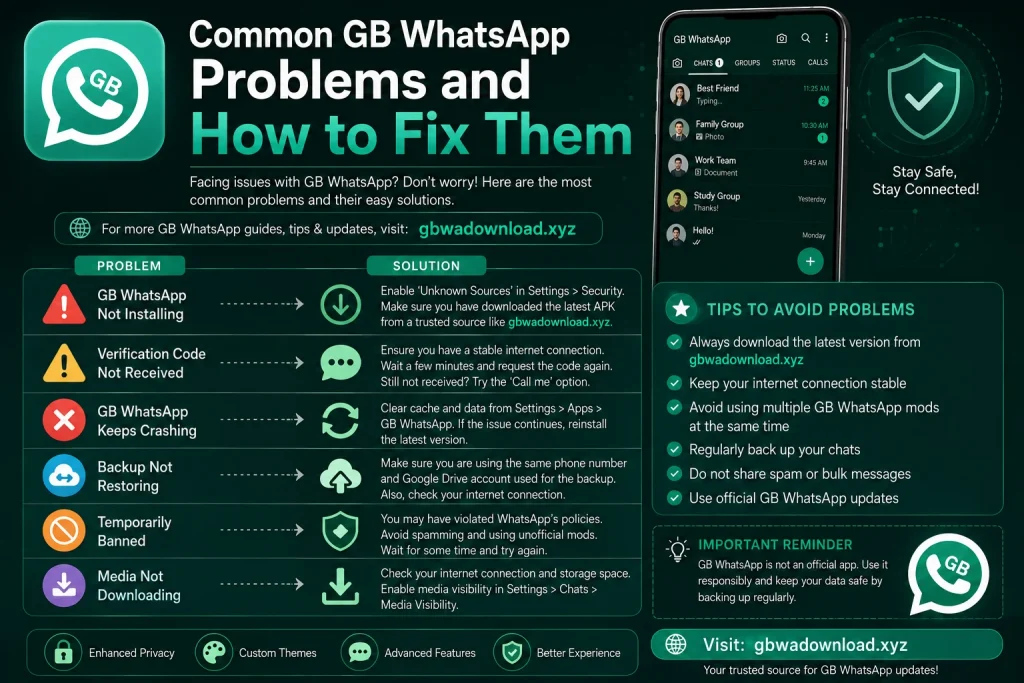
App crashes are one of the most frequently reported issues, often happening randomly while sending messages or opening chats. This usually happens because of outdated app versions, corrupted cache files, or conflicts with your phone’s operating system update. Restarting your phone first is always worth trying, since it clears temporary memory issues that often cause this kind of instability.
Fixing Repeated Crashes
If restarting does not help, clearing the app’s cache through your phone’s settings menu often resolves the problem. Go to your phone’s app settings, find GB WhatsApp, and select the option to clear cache without clearing your actual data. If crashes continue even after this, checking whether a newer version is available and updating carefully, following proper backup steps first, usually fixes the underlying issue.
Problem Two: Account Getting Banned or Restricted
Many users eventually run into a temporary or permanent ban message when opening the app. This happens because using GB WhatsApp technically violates the official WhatsApp terms of service, and their systems periodically detect and restrict accounts using modified apps. There is no guaranteed way to prevent this entirely, since it depends on decisions made by WhatsApp’s own detection systems.
Reducing the Risk of Future Bans
Some habits appear to reduce the likelihood of triggering a ban, such as avoiding sending bulk messages, avoiding suspicious looking automated behavior, and not adding too many unknown contacts quickly. Keeping your app reasonably updated, rather than running a very outdated version, also seems to help in many reported cases. Ultimately, switching to the official app remains the only way to fully eliminate this specific risk going forward.
Problem Three: Verification Code Not Arriving
Many users report waiting for a verification code during setup that simply never arrives. This is often caused by a temporary delay from the messaging network rather than an issue with the app itself. Waiting a few minutes and requesting the code again, rather than repeatedly requesting it back to back, usually resolves this within a short time.
Trying an Alternative Verification Method
If the text message code continues failing after several attempts, most versions offer a voice call verification option instead. Selecting this option during setup triggers an automated call reading out your verification code instead of sending a text. This alternative method resolves the issue in most cases where the text message delivery itself seems to be the problem.
Problem Four: Chats Disappearing After an Update
Losing chat history after updating is one of the most emotionally frustrating problems users report. This typically happens because the old version was uninstalled before a proper backup was created, or because the update itself failed partway through installation. Checking whether a backup file exists in your storage folder is the first step toward recovering lost conversations.
Recovering Lost Chats Step by Step
If a backup file exists, uninstall the current app completely, reinstall it fresh, and select restore backup when prompted during setup. Wait for the entire restore process to finish before attempting to open any chats. If no backup exists, unfortunately those specific chats cannot be recovered, which is exactly why backing up regularly before any future update matters so much.
Problem Five: Notifications Not Working Properly
Delayed or missing notifications are a common complaint, especially after certain phone software updates. This usually happens because your phone’s battery optimization settings are restricting the app’s background activity to save power. Checking your phone’s battery settings and excluding GB WhatsApp from aggressive battery optimization often resolves this issue quickly.
Double Checking Notification Permissions
Beyond battery settings, confirm that notification permissions are fully enabled for the app within your phone’s main settings menu. Sometimes a phone software update quietly resets these permissions without any clear warning. Re-enabling notifications manually after any major phone update is a good habit to build going forward.
Problem Six: Media Not Sending or Downloading
Photos, videos, or voice notes that refuse to send or download are usually tied to either a weak internet connection or insufficient storage space. Checking your available storage first is a quick way to rule out the simpler explanation. If storage is not the issue, switching between wifi and mobile data, then attempting the send again, often resolves temporary connection related failures.
When Media Problems Persist
If media issues continue even after checking storage and connection, clearing the app’s cache can help, since a buildup of temporary files sometimes interferes with media processing. In rare cases, a corrupted app installation is the underlying cause, which means reinstalling the app fresh, after backing up your chats first, may be necessary. This should only be treated as a last resort after simpler fixes have already been tried.
Problem Seven: The App Will Not Open at All
Occasionally the app fails to open entirely, showing a blank screen or closing immediately after tapping its icon. This is often related to a recent phone software update that is not yet fully compatible with the installed app version. Restarting your phone and attempting to open the app again resolves this in many cases.
Reinstalling as a Last Resort
If the app still will not open after restarting, and clearing cache has not helped either, a full reinstall may be necessary. Make absolutely sure your chats are backed up somewhere safe before taking this step, since reinstalling without a backup risks permanent chat loss. Once backed up, uninstall the app, restart your phone once more, then reinstall a version you know previously worked well.
Problem Eight: Backup Process Failing to Complete
Some users report the backup process getting stuck partway through or failing without a clear error message. This is frequently caused by low storage space, since the backup file needs somewhere to be written during the process. Freeing up storage space by removing unnecessary files before attempting the backup again usually resolves this specific issue.
Ensuring Backups Actually Complete Successfully
After attempting a backup, always check the file’s timestamp and size to confirm it actually completed rather than assuming it worked. A backup that silently failed gives a false sense of security until an update or reinstall reveals the problem. Making this quick check part of your regular backup routine avoids painful surprises later.
Problem Nine: Features Suddenly Missing After an Update
Sometimes a feature that worked perfectly fine before an update disappears entirely afterward. This usually happens because the developers changed or removed that specific feature in the newer version, rather than it being a bug on your device. Checking update notes, if available, or searching for others reporting the same missing feature helps confirm whether this is expected or a genuine glitch.
Deciding Whether to Roll Back
If a missing feature is important enough to you, some users choose to stay on an older version rather than updating immediately. This comes with its own tradeoff, since staying on an outdated version means missing out on newer fixes and potentially facing more compatibility issues over time. Weighing the missing feature against these tradeoffs helps you decide whether rolling back is genuinely worth it.
Problem Ten: Slow or Laggy Performance Overall
General slowness, delayed message sending, or laggy scrolling through chats is often tied to accumulated cache files and a large number of stored chats and media. Clearing cache regularly, rather than only when problems appear, helps keep performance smoother over time. Removing old media files you no longer need, especially large videos, also frees up resources that improve overall speed.
Keeping Your Phone Itself in Good Shape
Beyond the app itself, your phone’s overall storage and background app activity affect how smoothly any app performs, including GB WhatsApp. Regularly clearing unused apps, updating your phone’s operating system, and restarting your device periodically all contribute to better performance across the board. Treating the app and your phone’s general health as connected issues leads to more consistent results.
When It Might Be Time to Reconsider
If you find yourself troubleshooting the same problems repeatedly, whether it is bans, crashes, or lost chats, it may be worth reconsidering whether an unofficial app is still the right fit for your needs. The official WhatsApp has closed much of the feature gap that once made modified versions clearly more appealing. This is a personal decision, but one worth revisiting honestly if frustration keeps outweighing the benefits.
Final Thoughts
Most common GB WhatsApp problems come down to a manageable list of causes, including outdated versions, low storage, battery optimization settings, and missing backups. Working through each issue methodically, starting with the simplest fix like restarting your phone, resolves the majority of complaints without needing anything drastic. Keeping regular backups and staying reasonably updated remains the best overall defense against most of the problems covered in this guide.