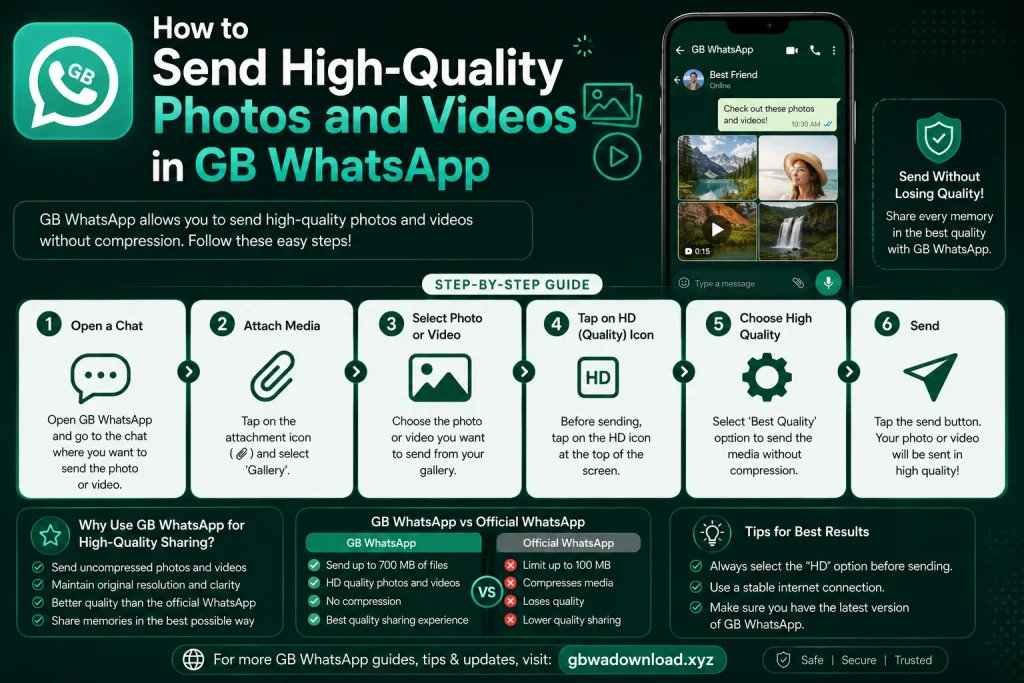
How to Send High-Quality Photos and Videos in GB WhatsApp
Why Photo and Video Quality Matters
Sending a photo only to have it come out blurry or pixelated on the other end is frustrating, especially when it was meant to capture something special. Many GB WhatsApp users run into this problem without realizing there are simple settings that control it. Getting quality right means your memories, documents, and shared moments actually look the way they were meant to look.
What This Guide Will Cover
This guide walks through every setting and habit that affects photo and video quality inside GB WhatsApp. It covers built-in quality settings, file size limits, sending methods, and common mistakes that quietly reduce quality without you noticing. By the end, you will know exactly how to send crisp, clear media every single time.
Why Quality Drops in the First Place
Most messaging apps compress photos and videos automatically to save data and speed up sending. GB WhatsApp does this too, but it also gives users more control over how aggressive that compression is. Understanding this compression process is the first step toward avoiding it when quality really matters.
The Difference Between Compression and Original Quality
Compression shrinks a file’s size by removing some of its finer visual detail, which speeds up sending but slightly reduces sharpness. Sending a file at its original quality skips this shrinking process entirely, keeping every detail intact. The tradeoff is that original quality files take longer to send and use more data and storage space.
Step One: Check Your Media Quality Setting
Open GB WhatsApp and go to Settings, then Chats. Look for an option related to media upload quality or photo quality, which is usually labeled clearly within this menu. Selecting the highest available option here reduces automatic compression for every photo you send going forward.
Where to Find This Setting Exactly
The exact wording can vary slightly depending on which version of GB WhatsApp you have installed. In most versions, this setting sits within Settings, then Chats, then Media Upload Quality or a similarly named option. If you cannot locate it immediately, checking under Data and Storage Usage is a good second place to look.
Step Two: Choose the Right Quality Option
Most versions offer a few clear choices, such as automatic, best quality, and data saver. Automatic adjusts based on your current connection, while best quality keeps files closer to their original resolution regardless of connection speed. Selecting best quality is the right choice whenever you are sending something you want to look sharp.
When Automatic Mode Makes Sense
Automatic mode is not a bad option for everyday casual photos where perfect clarity is not essential. It saves data and sends faster, which is useful when you are on a limited mobile connection. Switching back to best quality manually before sending something important is a simple habit worth building.
Step Three: Send as a Document Instead of Media
For the absolute highest quality, sending a photo or video as a document skips compression almost entirely. Open the chat, tap the attachment icon, and choose Document instead of Gallery or Camera. Select your file from storage, and it will send at its full original quality and resolution.
Why Document Sending Works So Well
Document sending treats your file as a raw file transfer rather than a media message, which is why compression rules do not apply the same way. This method works well for professional photos, important screenshots, or videos where every detail needs to remain visible. The only downside is that the recipient sees it as a file rather than a photo preview inside the chat.
Step Four: Adjust Video Quality Before Sending
Video quality settings often sit separately from photo settings inside the same menu. Look for an option specifically labeled video quality or video upload quality under Chats settings. Choosing the highest setting here prevents videos from being heavily compressed during the sending process.
Understanding Video File Size Limits
GB WhatsApp typically allows larger file sizes for videos compared to the official app, which is one of its more popular features. Even with a higher limit, very long or high resolution videos may still trigger some compression automatically. Trimming videos to only the necessary length before sending helps preserve quality within these limits.
Step Five: Check Your Camera Settings Too
Quality issues do not always come from GB WhatsApp itself. Your phone’s camera app settings, including resolution and video quality options, directly affect the starting quality of anything you capture. Checking that your camera is set to its highest resolution before recording ensures you are not starting with a lower quality file from the very beginning.
Recording in the Right Format
Some phones offer multiple video format options, such as standard and high efficiency formats. Recording in your phone’s highest quality format before sending gives GB WhatsApp a better source file to work with. This small step, done before you even open the chat, makes a noticeable difference in the final result.
Step Six: Mind Your Internet Connection
A weak or unstable internet connection can cause GB WhatsApp to compress files more aggressively to speed up sending. Sending important photos or videos over a stable wifi connection rather than mobile data often preserves more of the original quality. If you must send over mobile data, waiting for a stronger signal is worth the extra few minutes.
How Connection Speed Affects Compression
Some versions of the app automatically detect a slow connection and reduce quality without asking first. This is meant to prevent failed sends, but it does mean your recipient receives a lower quality file than intended. Manually selecting best quality mode, as covered earlier, helps override this automatic behavior in most cases.
Step Seven: Avoid Forwarding Already Compressed Media
Forwarding a photo or video that someone already sent you compresses it a second time, which noticeably reduces quality even further. Whenever possible, ask the original sender to share the file as a document instead of a forwarded media message. This keeps the quality closer to the original source rather than compounding compression multiple times.
Saving Originals Before Sharing Further
If you plan to share a photo or video with several people, save the original file to your device first rather than forwarding it directly from the chat. Sending from your saved gallery copy, or better yet as a document, keeps quality more consistent across every person you share it with. This small habit prevents a slow quality decline as media gets passed along.
Step Eight: Check Storage Space Before Sending
Low storage space on your device can sometimes interfere with how GB WhatsApp processes and sends larger, higher quality files. Clearing out unnecessary photos, videos, or unused apps before sending something important gives the app more room to work properly. This is especially relevant when sending several high quality files at once.
Why Storage Issues Are Easy to Miss
Storage related problems often show up as failed sends or unexplained quality drops rather than a clear error message. Because of this, storage space is easy to overlook as a possible cause. Checking your available storage occasionally, especially before a big media send, saves you from a confusing troubleshooting session later.
Common Mistakes That Quietly Reduce Quality
A few habits consistently lower quality without users realizing it. Leaving the app on its default automatic setting for every send, forwarding already compressed files repeatedly, and sending over a weak connection are the most common culprits. Recognizing these patterns in your own habits is the first step toward consistently better results.
Building Better Sending Habits Going Forward
Making a habit of checking your quality settings before an important send, using document mode for anything that truly matters, and sending over a stable connection covers most of what affects quality overall. These habits take only a few extra seconds but make a real difference in how your photos and videos look on the other end. Over time, this becomes second nature rather than an extra step you have to remember.
A Quick Word on App Stability
It is worth remembering that GB WhatsApp is an unofficial, modified app, and quality related settings can shift slightly between versions or stop working as expected after certain updates. If a setting mentioned here seems missing or behaves differently, checking the app’s current version and settings menu structure is a good first troubleshooting step. Keeping expectations realistic about an unofficial app helps avoid unnecessary frustration.
Final Thoughts
Sending high quality photos and videos in GB WhatsApp mostly comes down to a handful of deliberate choices rather than luck. Adjusting your media quality settings, choosing document mode when it matters most, and sending over a stable connection will noticeably improve how your media looks to the people receiving it. A small amount of extra attention before hitting send goes a long way toward making sure your photos and videos actually look the way you intended.