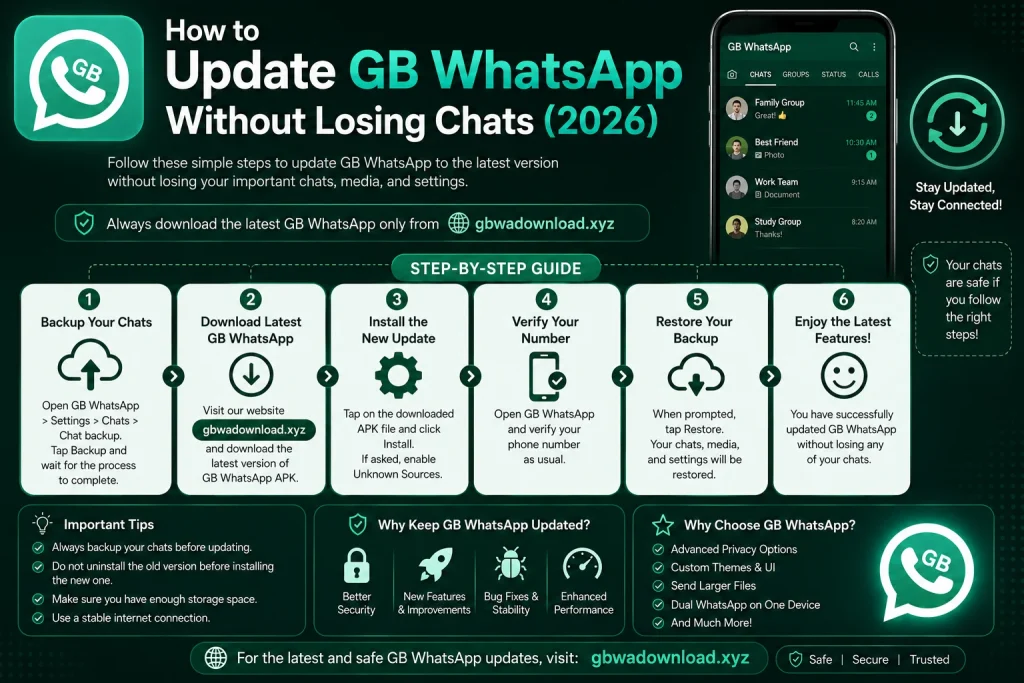
How to Update GB WhatsApp Without Losing Chats (2026)
Why This Question Matters So Much
If you use GB WhatsApp, you already know how it feels when an update notification pops up. The excitement of new features is usually followed by one worry: will I lose my chats this time. That fear is completely normal, and it happens to be one of the most searched questions among GB WhatsApp users every time a new version is released.
What This Guide Will Cover
This guide walks you through the safest way to update GB WhatsApp in 2026 while keeping every chat, photo, video, and voice note intact. It also explains the risks involved honestly, since a modified app is not the same as the official WhatsApp. By the end, you will know how to prepare, install, recover, and avoid future problems.
What Is GB WhatsApp
GB WhatsApp is an unofficial, modified version of WhatsApp built by independent developers, not by WhatsApp or its parent company. People are drawn to it because it offers extra customization the official app does not provide, such as custom themes, hidden online status, and larger file sharing limits. It also allows more control over privacy toggles than the standard app.
What Makes It Different From the Official App
The official WhatsApp is reviewed, tested, and distributed through the Google Play Store with strict oversight. GB WhatsApp skips all of that, since independent developers build and release it outside any official review process. This difference is exactly why updates, permissions, and data handling need extra caution on your part.
Why Updates Work Differently Here
Because GB WhatsApp is not distributed through the Google Play Store, updates do not happen automatically like they do for most apps on your phone. You have to manually find and install a new version whenever the developers release one. This manual process is exactly where most people run into trouble, and it is the main reason chats disappear after an update.
The Responsibility Falls on You
Unlike the official WhatsApp, which handles updates quietly in the background through the Play Store, GB WhatsApp puts the entire responsibility on the user. A single missed step, like uninstalling before backing up, can cost you years of conversations and shared media. Understanding this responsibility early helps you approach every future update with more care.
Common Reasons Chats Get Lost
Most chat loss happens because of a small number of repeated mistakes. Installing a new version without backing up first is the most frequent cause, followed closely by uninstalling the old version before saving anything. A weak internet connection or low storage space during installation can also interrupt the process and corrupt existing data.
Package Names and Version Mismatches
Sometimes a new file uses a different package name than your current installation, and your phone treats it as a completely separate app rather than an update. This mismatch alone can wipe your chat history instantly, even if you did everything else correctly. Always compare the update against your existing version before installing to avoid this specific trap.
How Storage Space Plays a Role
Low storage space on your phone can silently interrupt an installation without giving you a clear warning. When this happens midway through an update, the app files can end up incomplete or corrupted. Clearing unnecessary files or photos before starting an update gives the installation room to complete properly.
Step One: Back Up Your Chats First
Backing up is the single most important step in this entire process, and skipping it is the top reason people lose valuable conversations. Open GB WhatsApp, go to Settings, then Chats, then Chat Backup, and tap Back Up Now. Wait patiently until the process finishes completely without closing the app early.
Where Your Backup File Lives
Once the backup finishes, take note of where the file is actually stored, which is usually inside an internal storage folder connected to the app. For extra safety, manually copy that folder to your phone’s main storage or a personal cloud account. Having a second copy stored separately means your chat history survives even if the update itself goes wrong.
Double Check Before Moving On
Before continuing to the next step, check the date and size of your backup file carefully. If the file looks unusually small or the date does not match your most recent conversations, run the backup process again. A few extra minutes here can save you from a much bigger problem later.
Step Two: Note Your Current Version
Go to Settings, then Help, then App Info, and write down the version number currently installed. This helps you confirm afterward that the update installed the correct version rather than an unrelated file. It also helps you spot compatibility issues before they cause any damage to your data.
Why Version Jumps Matter
If you have not updated in a long time, you might be jumping several versions at once during this update. Bigger jumps between versions carry a higher chance of running into compatibility issues along the way. This makes backing up beforehand even more important than usual, since older data structures do not always transfer smoothly.
Step Three: Download the Update Carefully
Only update using a source you already trust and have used safely before. Be cautious of pop-ups inside the app claiming an urgent update is required immediately, since urgency is a common trick used to spread harmful files disguised as real updates. Compare the file size and version number against what you expect based on past updates.
Take Your Time With Every Download
There is rarely a genuine reason to install an update within seconds of first seeing it appear. A short delay to verify the file is far safer than rushing straight into installation. Waiting even a day allows other users to report problems, which gives you useful warning signs to watch for.
Spotting Warning Signs Early
Watch for file sizes that seem unusually small compared to previous updates, since this can sometimes indicate missing or altered content. Also pay attention to version numbers that skip several numbers at once without explanation. If anything about the download feels inconsistent with past experience, pausing before installing is always the safer choice.
Step Four: Never Uninstall the Old Version First
This is where most chat loss actually happens, and it deserves its own clear warning. Many people assume they need to remove the old app completely before installing something new, similar to updating software on a computer. Doing this with GB WhatsApp deletes the local chat database stored on your device along with any media that was never backed up.
Installing Directly Over the Old App
Instead of uninstalling, simply install the new file directly over your existing app without removing anything first. As long as the package name matches your current installation, the update happens in place while your existing data stays completely untouched. Think of it as altering a jacket to fit better while everything already in the pockets stays exactly where it was.
Step Five: Let the Installation Finish Completely
Before installing, confirm your phone has enough free storage space and a stable internet connection. Once installation begins, avoid switching to other apps, restarting your phone, or interrupting the process in any way. Let it run fully from start to finish before attempting to open the app again.
Why Interruptions Are So Risky
Interrupted installations are one of the more overlooked causes of chat loss among GB WhatsApp users. A half finished install can sometimes corrupt the existing chat database rather than simply failing outright and stopping safely. This is why patience during this specific step matters so much more than people expect.
Step Six: Verify Everything Loaded Correctly
Once installation completes, open GB WhatsApp and check that your chats, media files, and personal settings are all present exactly as you left them. If everything loaded correctly, the update was successful and no further action is needed. If chats appear missing or the app looks like a fresh install, there is still a reliable way to recover them.
What to Check Beyond Just Chats
Beyond chats, also check that your profile picture, saved contacts, and any custom settings you configured are still intact. Media files like photos and videos sent in older chats are worth spot checking as well. Confirming all of this early means you catch any issues before they become harder to trace back.
Step Seven: Restore From Your Backup
If chats did not appear automatically, uninstall the newly updated app completely and confirm your backup file is still present in its original folder. Reinstall the app fresh using the same update file you downloaded earlier. During setup, when prompted to restore a backup, select yes and wait for the process to finish fully before opening any chats.
What Restoring Actually Recovers
This restore process brings your conversations back exactly as they existed at the time of your last backup. Anything sent after that specific backup will not be recovered through this method, which is why timing matters so much. This is exactly why creating a very recent backup right before updating is so strongly recommended.
The Real Risks Worth Knowing
Being upfront here matters, because a genuinely helpful guide should not ignore real concerns. Your account can be temporarily or even permanently banned for using an unofficial app, since this goes against WhatsApp’s official terms of service. Files from unfamiliar sources sometimes contain hidden harmful software, and there is no guarantee of how your personal data is handled behind the scenes.
Weighing the Trade-Off Honestly
There is also a real possibility of losing access to your phone number temporarily if an update fails partway through and forces a full reinstall. If keeping your chats permanently safe matters more than extra customization features, switching to the official WhatsApp app is the safer long term choice. The official app now includes many features once unique to modified versions, including stronger privacy controls and more consistent updates.
Make Backing Up a Regular Habit
Backing up should be part of your regular routine rather than something you only remember right before an update. Setting a reminder to back up your chats every week or two means you are never caught off guard by a sudden update notice. This single habit alone prevents the majority of chat loss cases reported by users.
Keep a Written Record of Your Version
Keep a written note of your current version number somewhere easy to find, such as a notes app on your phone. This gives you something concrete to compare against after every future update. It also helps you notice quickly if an installation did not go as expected.
Avoid Rushing Into New Releases
Avoid installing updates the very moment they appear, especially from sources you have not used before. Waiting even a day or two often gives other users time to report any problems they encountered. Watching for these early reports before installing yourself is a simple way to avoid avoidable mistakes.
Store a Backup Outside Your Phone Too
Consider keeping a second backup stored somewhere completely outside your phone, such as a personal cloud account. This way, even a lost, stolen, or damaged device does not mean losing your chat history permanently. A small amount of extra effort here provides a much stronger safety net overall.
When It Might Be Time to Switch Back
If you find yourself dealing with repeated update problems, lost chats, or growing concerns about account bans, it may be worth reconsidering the official app entirely. Many of the customization features that once made GB WhatsApp appealing have slowly made their way into the official version over time. Weighing convenience against long term reliability is a personal decision worth revisiting occasionally.
Final Thoughts
Updating GB WhatsApp without losing your chats really comes down to one simple habit, which is always backing up before touching anything else. Skip the temptation to uninstall the old version first, install the new file directly over the existing app, and keep a backup stored safely somewhere separate just in case. Update after update, is the extra customization really worth the ongoing risk to your account and personal data, and for many people heading further into 2026, the answer is slowly shifting toward the official app instead.